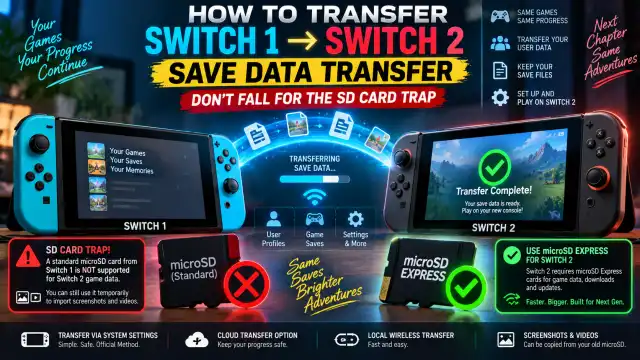
🎮 Quick Answer: Do Not Move Your Old microSD Card First
- Game saves are stored in your Switch 1 internal system memory—not on the microSD card.
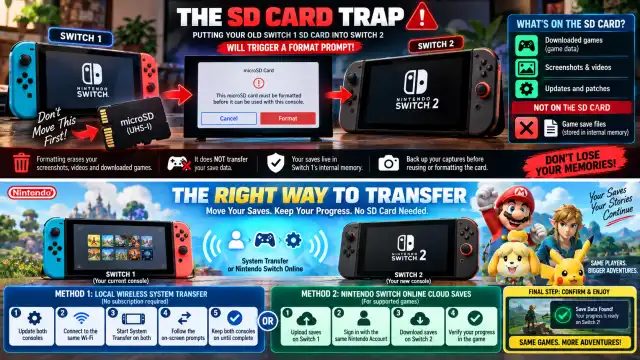
- Putting an old Switch 1 card into Switch 2 triggers a format prompt, which wipes its screenshots, videos, and downloaded game data.
- Use System Transfer with both consoles present, or download eligible saves through Nintendo Switch Online cloud backup.
- Switch 1 UHS-I cards can work in Switch 2, but native Switch 2 games are best paired with a new microSD Express card. ⚡
A new Nintendo console is exciting: fresh hardware, faster loading, and a perfect excuse to revisit a backlog. But before you pull the microSD card from your original Switch and slot it into Switch 2, stop. That seemingly logical move is the fastest route into the dreaded SD card trap—and it will not transfer your precious save files.
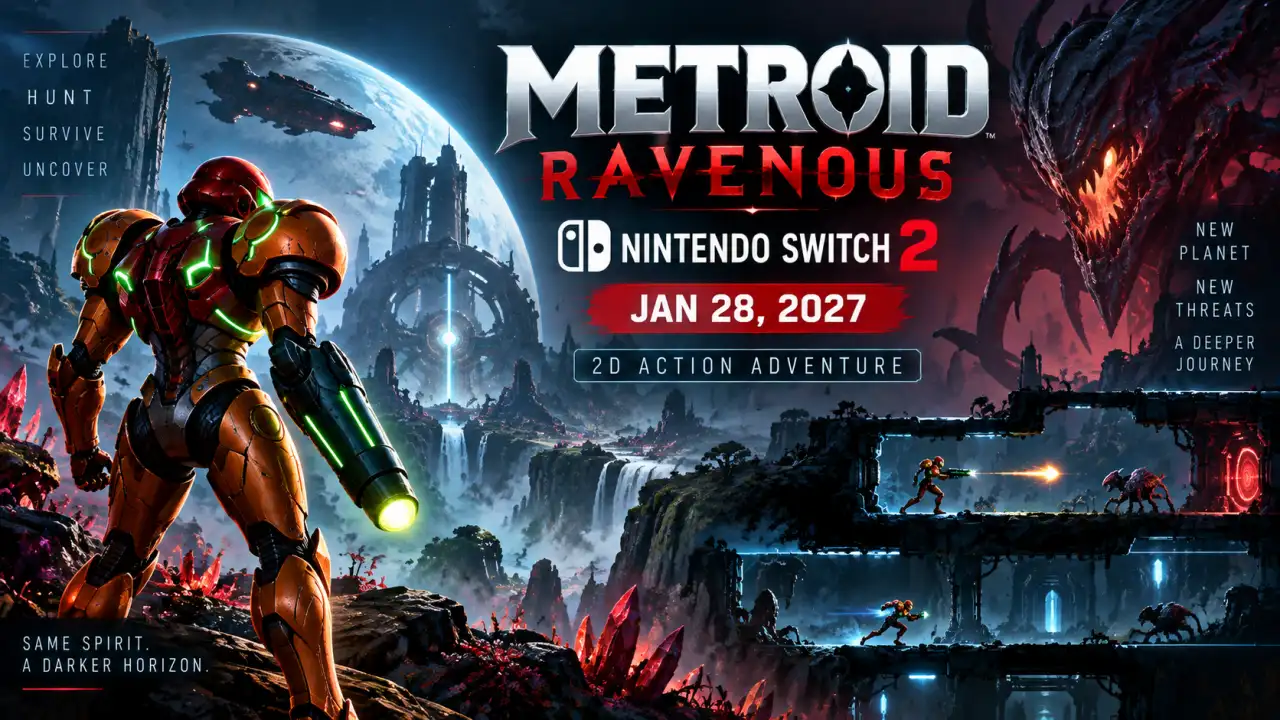
Metroid Ravenous Revealed for Nintendo Switch 2: Release Date, Tech Specs, and Gameplay
🔥 Key Announcement TakeawaysPlatform Exclusivity: Built from the ground up purely for the next-generation Nintendo...
If you are searching for how to transfer save data from Switch 1 to Switch 2 by SD card, the key fact is simple: Nintendo does not store game saves on removable storage. Your Animal Crossing island, Zelda progress, Pokémon collection, and RPG hours live in the old console’s internal NAND memory. The card holds game installs and captures, not your save archive. 🎯
Treat the old microSD card as a media and download library—not as a save-data cartridge. Your saves only move through an official console transfer or supported cloud backup.
Where Your Switch Data Actually Lives
Nintendo separates data by type for security and licensing. That architecture prevents save files from being copied around on removable cards, but it also means a storage swap cannot migrate your player profile. Knowing the split before you begin makes the upgrade process far less stressful.
| Data type | Primary location | NSO cloud backup? | What happens in migration |
|---|---|---|---|
| Game save files | Internal NAND system memory | Yes, for supported titles | Move by System Transfer or re-download from cloud |
| Screenshots and videos | Internal memory or microSD | No | Back up separately before formatting |
| Downloaded games | Internal memory or microSD | No | Transfer or download again with your account |
| Updates and patches | Internal memory or microSD | No | Re-download if needed |
The SD Card Trap, Explained
When Switch 2 sees a microSD card prepared by another Switch, it does not simply adopt the card. The system recognizes that the storage was associated with different console-specific data and asks to erase it before use. This is expected behavior, not a broken card or a sign that your account is missing.
Selecting Format clears the card’s screenshots, video clips, and installed game packages. It does not pull saves from the old console, because those saves were never on the card in the first place. Your old Switch remains the source of truth until a successful transfer or cloud restoration is complete. 🏆
❌ Do not do this
Remove the old card, insert it into Switch 2, and expect accounts, saves, and digital games to appear. It will not migrate your profile or progress.
✅ Do this instead
Keep both consoles available, update them, and start Nintendo’s built-in System Transfer. Back up captures separately before reusing or formatting storage.
microSD vs. microSD Express on Switch 2
Can you use an old Switch SD card in Switch 2? Physically and functionally, standard UHS-I microSD cards remain usable after the required formatting process. They are a reasonable option for secondary storage or older software, but they run at legacy speeds—roughly up to 100 MB/s in ideal conditions.
Nintendo Switch 2 microSD Express compatibility is the real upgrade story. These PCIe-based cards offer dramatically higher bandwidth, with capable models reaching roughly 600–800 MB/s. That extra throughput is valuable for native games that stream large, high-resolution assets. For the smoothest long-term setup, start Switch 2 with a dedicated microSD Express card and leave the old card in Switch 1 until every file is accounted for. ⚡
How to Transfer Switch Data to Switch 2 Without Losing Saves
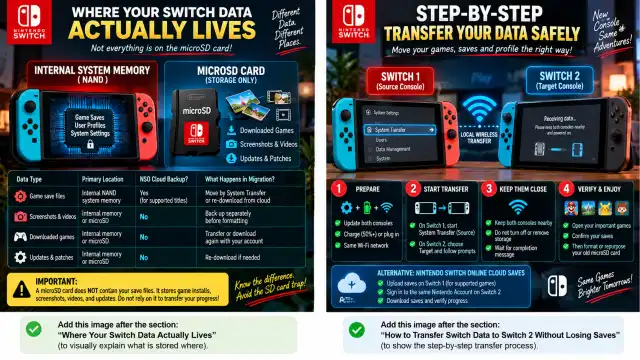
The recommended route is the built-in local wireless System Transfer. It is designed to move user accounts, save data, purchased-content access, and relevant settings directly from the original Switch to the newer console. Best of all, it does not require an active Nintendo Switch Online membership.
Method 1: Local wireless System Transfer
- Update both consoles to their latest available system software.
- Connect both systems to AC power, or ensure each has more than 50% battery.
- Place them near each other and connect them to the same local Wi-Fi network.
- On Switch 1, open System Settings, go to the user-transfer or system-transfer option, and choose the source-console flow.
- On Switch 2, choose the matching target-console flow, then follow the pairing prompts on both screens.
- Keep both consoles powered on and close together until the completion message appears. Do not remove storage or interrupt the connection.
Method 2: Nintendo Switch Online cloud saves
If your game supports Save Data Cloud and your account has an active Nintendo Switch Online membership, you can upload saves from Switch 1 and download them after signing into Switch 2. This is especially useful when a direct transfer is not practical—but it is not universal. Some titles do not support cloud backup, and special cases can have their own transfer rules.
- On Switch 1, confirm that the game’s save backup has completed under your user’s cloud-save settings.
- Sign into the same Nintendo Account on Switch 2.
- Download the supported save data before launching the game, then verify your progress on the title screen.
- For games with restricted or unique saves, consult that game’s official support guidance before erasing or selling Switch 1.
Migration Day Timeline: The Safe Order of Operations
| Phase | Action | Why it matters |
|---|---|---|
| Before setup | Update consoles; charge them; copy captures. | Prevents interruption and protects irreplaceable media. |
| During setup | Run System Transfer or verify cloud backups. | Moves the data that actually contains your progress. |
| After transfer | Open key games and confirm saves. | Lets you catch an issue while Switch 1 is still intact. |
| Only then | Format or repurpose the old microSD card. | Avoids accidental loss of screenshots and clips. |
Switch 1 to Switch 2 Save Transfer FAQ
Will moving my microSD card transfer game saves?
No. Save files are stored only in internal system memory. Moving the card can expose your screenshots and installed games to a format prompt, but it does not move saves.
Can I use my old Switch 1 microSD card in Switch 2?
Yes, standard UHS-I cards can be used after Switch 2 formats them. Back up the card first, because that format erases its existing contents.
Do I need Nintendo Switch Online to transfer saves?
No. A local console-to-console System Transfer is the preferred no-subscription path. Nintendo Switch Online is an alternative for supported cloud-save titles.